Get a bookmarks file
Export your bookmarks from your browser or bookmarks app as HTML. PDF, CSV and saved web pages won't work.
Already have a bookmarks .html file? Skip to importing.
Safari on Mac
- Open Safari and choose File → Export Browsing Data to File.
- Select Bookmarks and deselect the other data types.
- Click Export or Download, depending on your Safari version. Choose a name and location, then click Save.
- Open the downloaded ZIP file in Finder. Use the bookmarks HTML file inside it.
Safari on iPhone or iPad
- Open your device's Settings app and go to Apps → Safari → Export.
- Select Bookmarks and deselect the other data types.
- Tap Save to Downloads.
- In Files, open Downloads and tap the ZIP file to extract it. Use the bookmarks HTML file inside.
If you don't see Export, use Safari on a Mac that syncs your bookmarks through iCloud. Apple's instructions cover iPhone and iPad.
Chrome on a computer
- Open Chrome's three-dot menu and choose Bookmarks and lists → Bookmark Manager.
- Open the three-dot menu inside Bookmark Manager and choose Export Bookmarks.
- Save the HTML file.
Firefox on a computer
- Open Firefox's menu and choose Bookmarks → Manage bookmarks.
- In the Library window, open Import and Backup and choose Export Bookmarks to HTML.
- Save the HTML file. Use HTML, not Firefox's JSON backup format.
Use iCloud Drive or AirDrop to move the file to iPhone or iPad. You'll find it in Files.
Import into Just Bookmarks
On iPhone or iPad
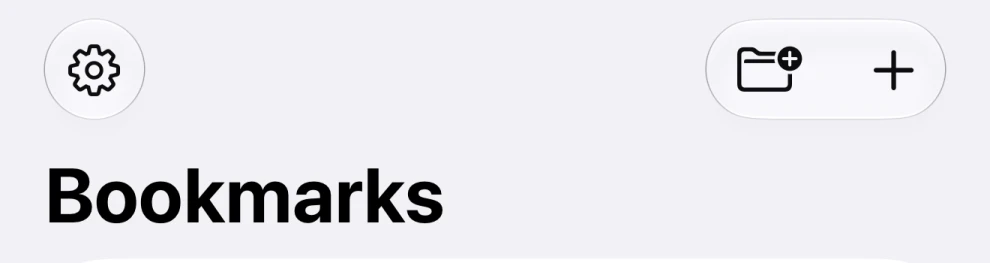
- Open Just Bookmarks and tap the Settings gear. If it's hidden, go back to the sidebar.
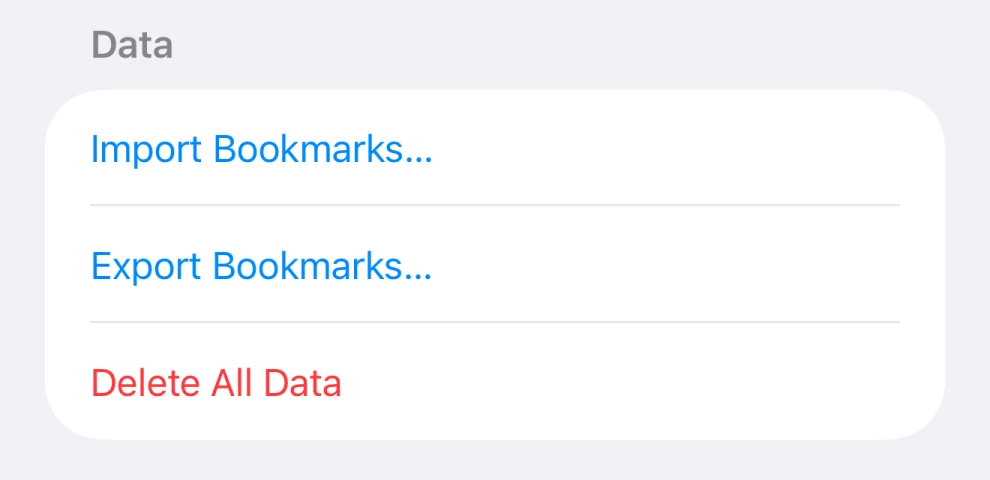
- Scroll to Data and tap Import Bookmarks….
- Choose your bookmarks HTML file.
- Review the preview. It shows which bookmarks will import and counts the duplicate or invalid entries the app will skip.
- Tap Import.
On Mac
- Open Just Bookmarks and choose File → Import Bookmarks… from the menu bar.
- Choose your bookmarks HTML file.
- Review the preview, then click Import.
You can also import during first-time setup.
Importing doesn't change your existing bookmarks or your browser. It skips links already in your library and repeats within the file.
Your bookmarks may appear before their previews and other details finish loading.
Export your bookmarks
On iPhone or iPad
- Open Settings in Just Bookmarks.
- Scroll to Data and tap Export Bookmarks….
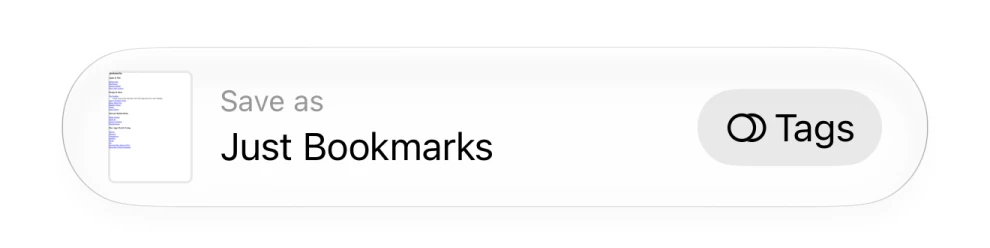
- To change the filename, tap it beside Save as at the bottom of the dialog.
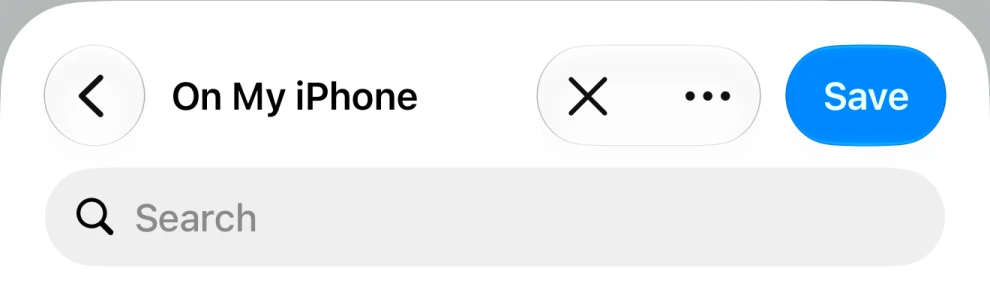
- Choose a folder, then tap Save.
On Mac
- Choose File → Export Bookmarks… from the menu bar.
- Choose a name and location, then save the HTML file.
Export copies your whole library, not just the collection or search results on screen. Your bookmarks stay in Just Bookmarks.
To use the file in another browser or app, choose it with that app's import command.
What comes with the file
- Links and titles
- The file uses the standard bookmarks HTML format, also called Netscape Bookmark format.
- Folders and collections
- Imported folders become collections. A nested folder becomes one collection named after its path, such as Recipes / Baking. Export turns collections back into folders.
- Tags, notes and dates
- Just Bookmarks imports these if they're in the file and includes them when exporting. Other apps may leave them out.
- What stays in the app
- The file doesn't include Smart Collection rules, preview images, dead-link status, app settings or empty collections. It's a copy of your bookmarks, not a full app backup.
Keep the file somewhere private. Anyone with a copy can read the links, titles and any notes it contains.
If something goes wrong
The file isn't accepted
Check that you chose a bookmarks HTML export. Extract ZIP files first. A saved web page or a file renamed to .html won't work. Firefox JSON backups aren't supported.
Some bookmarks didn't import
Check the preview for skipped entries. Duplicates and invalid links won't import. If every link is already in your library, there's nothing new to add.
My folder structure looks different
Collections aren't nested. A folder inside another folder becomes one Collection with both names, separated by a slash.
Still stuck? Email support. Include your device, the browser or app you exported from and the error message. Only attach your bookmarks file if you're comfortable sharing its contents.