Open the editor
On iPhone or iPad
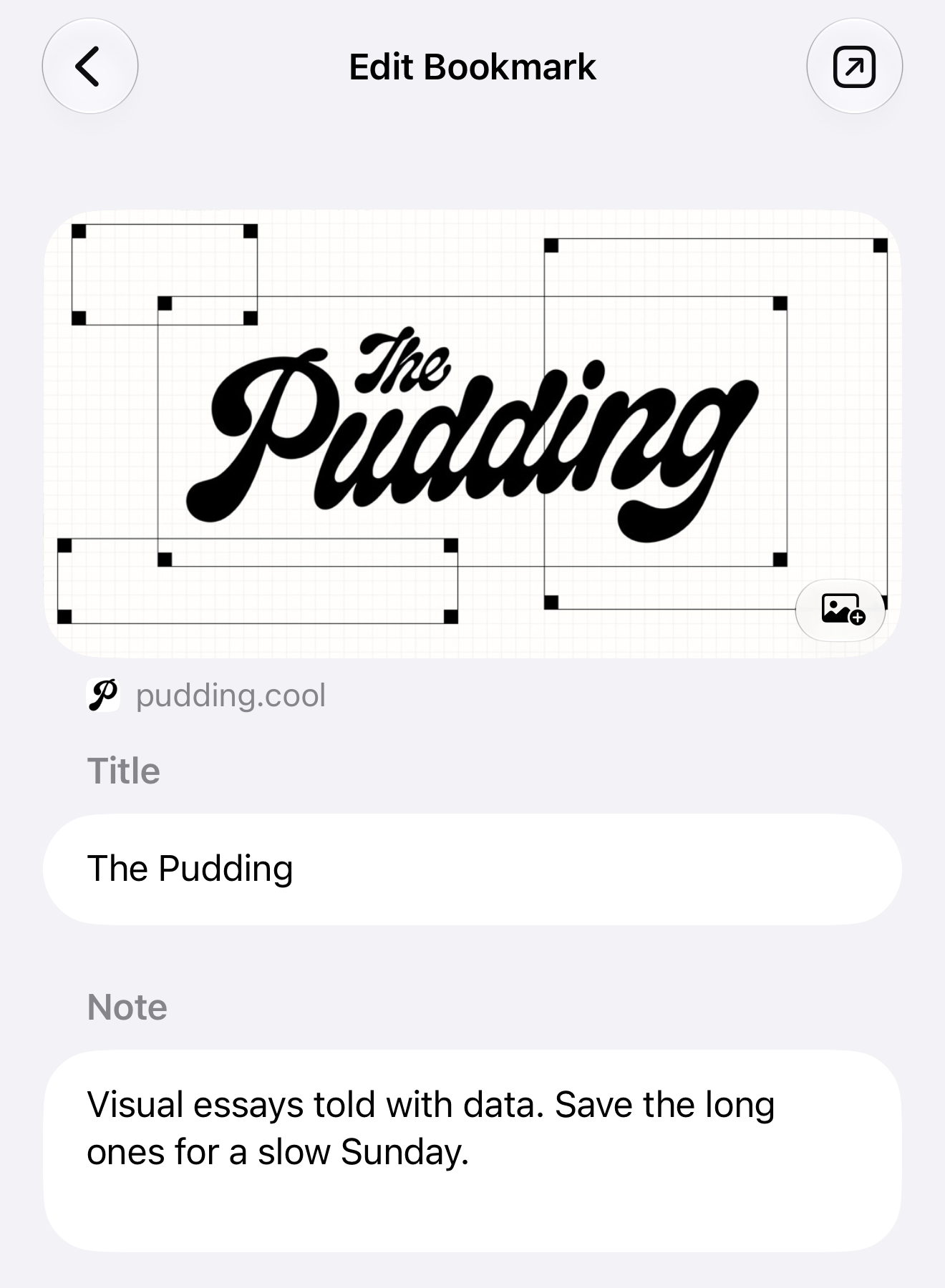
Swipe left on a bookmark and tap Edit. If you've set taps to edit bookmarks, tap it instead.
On Mac
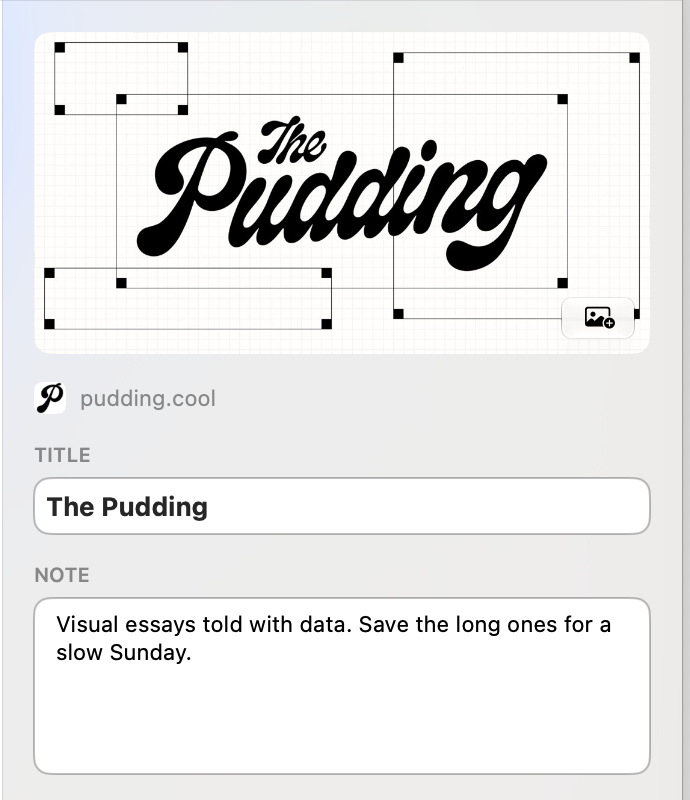
Select a bookmark to edit it in the info panel on the right. If the panel is hidden, click Show Info, the right-sidebar button in the toolbar.
Change the title or note
Enter the name you want in Title. Add a reminder in Note, such as "Save the long essays for a slow Sunday."
Changes save automatically. Go back to the list on iPhone or iPad, or select another bookmark on Mac.
For collections and tags, see Organize bookmarks with collections and tags.
Choose a preview image
- Tap or click Choose Image, the image-plus button at the bottom-right of the preview.
- Choose an image file to replace the preview.
You can add an image the same way if the preview is blank. To use a picture from Photos, export or save a copy as a file first.
Retry missing page details
Scroll down in the editor or info panel. If page details are missing or the last fetch failed, you'll see Retry Metadata. Tap or click it to try again.
Loading Metadata means the fetch is running. A retry keeps your edited title and any saved preview image. To replace an existing image, use Choose Image.
Some pages don't provide a usable preview. You can add your own image or leave it blank. The bookmark still works.
To check the whole library for broken links and missing previews, see Check for dead links and missing images.