Collections or tags?
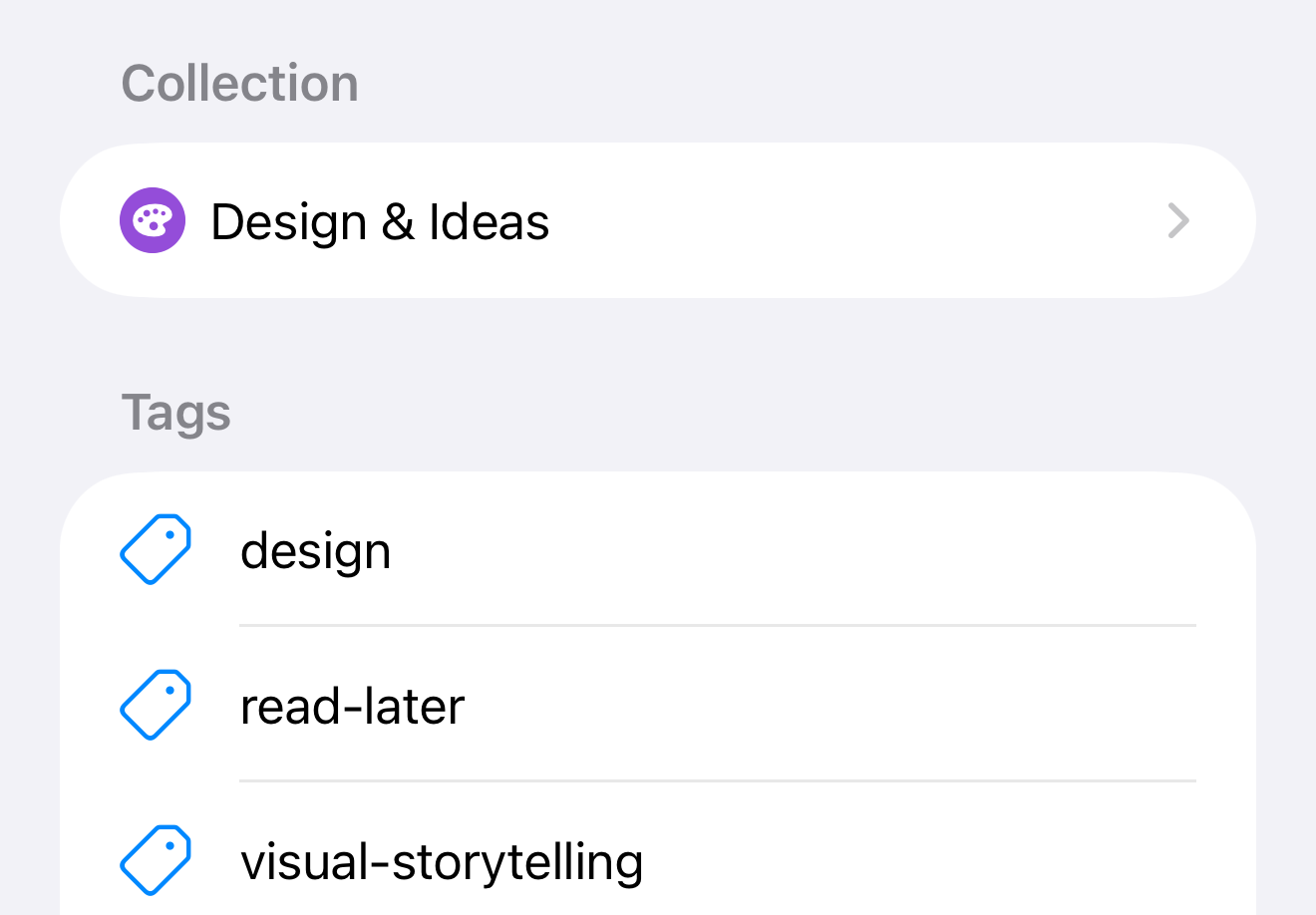
A bookmark can belong to one collection, such as Design & Ideas, and have several tags. A tag like read-later groups links across collections.
Both are optional. You can save a link first and organize it later.
Create a collection
On iPhone or iPad
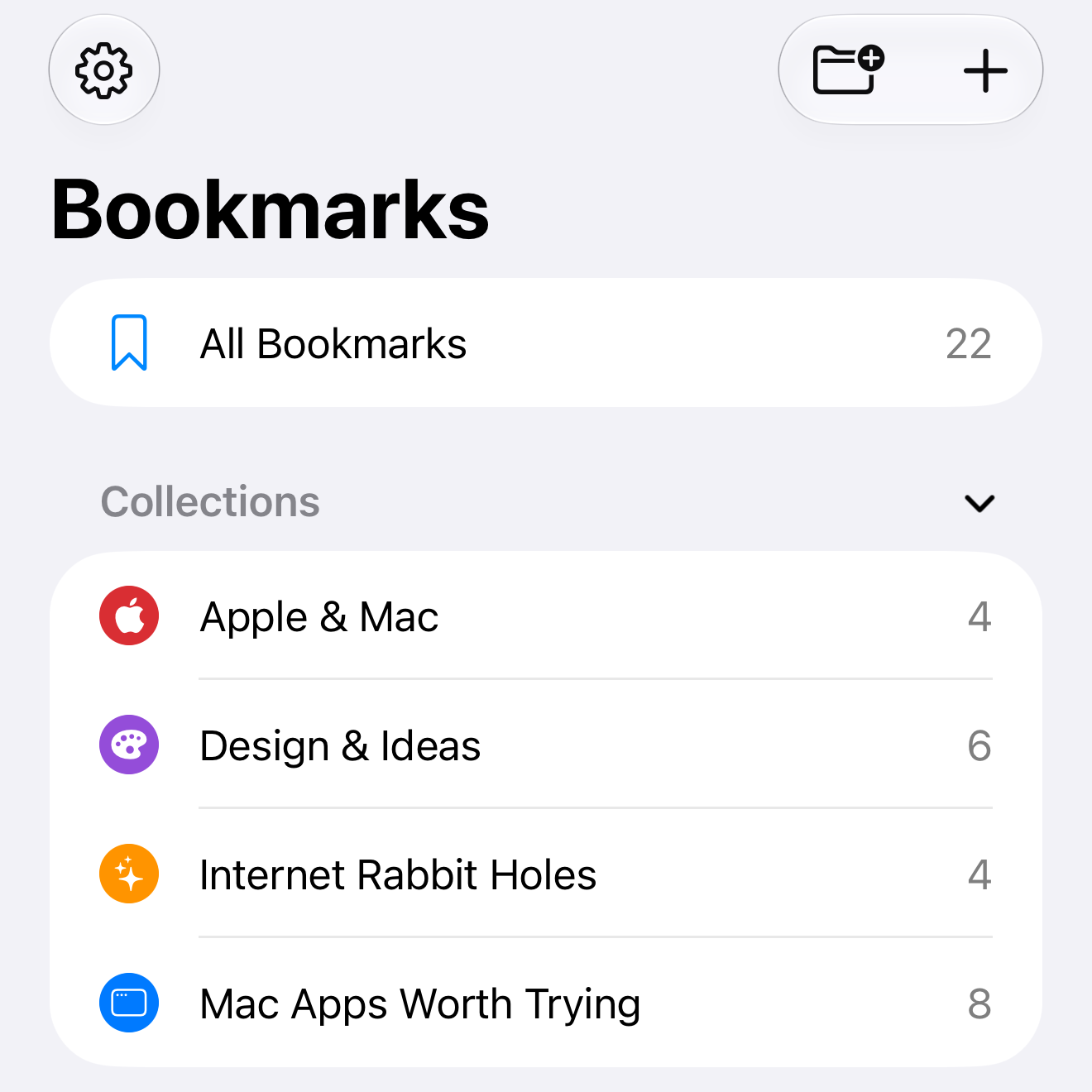
- Go to the Bookmarks screen or sidebar.
- Tap New Item, the folder with a plus.
- Keep Collection selected and enter a name, such as Design & Ideas.
- Choose a color and an icon or emoji, then tap Save. You can keep the defaults.
On Mac
- Choose File → New Collection.
- Enter a name. Choose a color and an icon or emoji, or keep the defaults.
- Click Save.
Don't select Smart. You'll add bookmarks to this collection by hand. For a list based on conditions, create a Smart Collection instead.
Move a bookmark
We'll move The Pudding into Design & Ideas. Moving a bookmark doesn't copy it.
On iPhone or iPad
- Swipe left on a bookmark and tap Edit. If you've set bookmarks to open for editing when tapped, tap it instead.
- In Edit Bookmark, scroll to Collection and tap the row.
- Choose Design & Ideas, then go back to the bookmark.
On Mac
- Click the bookmark once to select it.
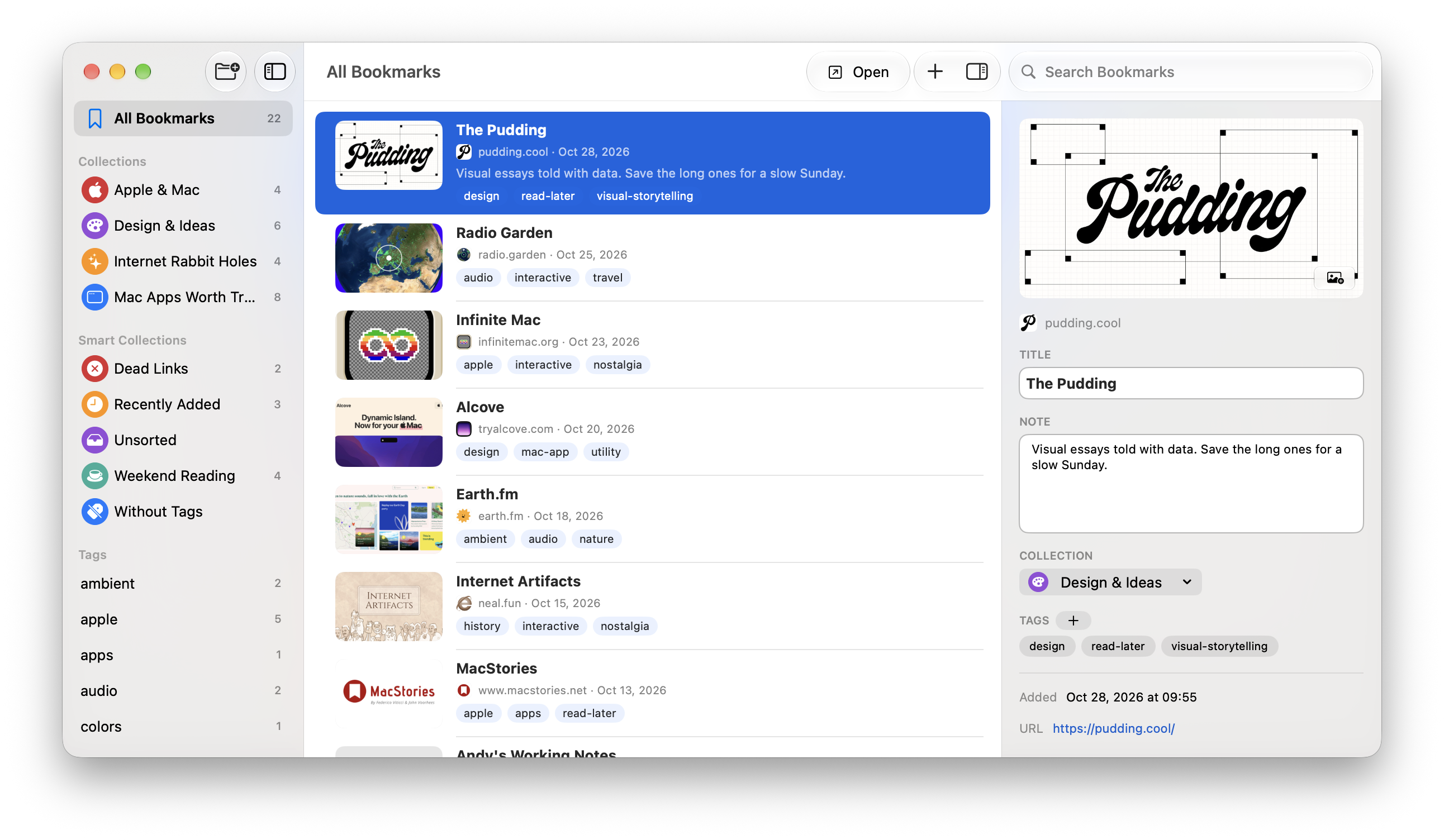
- Use the Collection menu in the info panel on the right to choose Design & Ideas. If the panel is hidden, click Show Info in the toolbar.
Changes save as you make them. Choose None to remove the bookmark from its collection. It stays in All Bookmarks.
Add or remove tags
On iPhone or iPad
- In Edit Bookmark, scroll to Tags and tap Edit Tags.
- Tap a tag to add it. Selected tags have a checkmark.
- For a new tag, tap the plus labeled New Tag. Enter a name, such as read-later, then tap Add. This creates the tag and adds it to the bookmark.
- Tap Done to return.
To remove a tag, open Edit Tags and tap it to clear the checkmark, then tap Done. The tag stays available and remains on other bookmarks.
On Mac
- Select the bookmark and find Tags in the info panel.
- Click the plus beside Tags and choose an existing tag.
- To create one, choose New Tag…, enter its name and click Add.
Click a tag in the info panel to remove it from this bookmark. This doesn't delete the tag.
Find your bookmarks
On iPhone, return to the Bookmarks screen. On iPad or Mac, use the sidebar.
- Choose Design & Ideas under Collections to see its bookmarks.
- Choose read-later under Tags to see links with that tag across all collections.
- Choose All Bookmarks to return to the whole library.
Use Unsorted to find bookmarks without a collection, or Without Tags to find bookmarks with no tags.
Adding a new link? You can also choose a collection and tags before saving. To bring in an existing library, see Import and export bookmarks.