How it works
A Smart Collection lists bookmarks that match conditions you choose. It updates without moving or copying your bookmarks. The same link can appear in several Smart Collections.
We'll make Weekend Reading for bookmarks tagged read-later and saved in the last 30 days. Create the read-later tag first if you don't have it.
Create a Smart Collection
On iPhone or iPad
- Go to the Bookmarks screen or sidebar.
- Tap New Item, the folder with a plus.
- Keep Collection selected and enter Weekend Reading as the name.
- Tap Smart to show the conditions. Scroll down if needed.
On Mac
- Choose File → New Smart Collection.
- Enter Weekend Reading as the name.
You can keep the default color and icon. Next, choose which bookmarks belong in the list.
Set the conditions
- Set the first condition to Tag, is, read-later.
- Tap or click the plus beside the row, labeled Add Condition.
- Choose Creation Date, then is within the last. Enter 30 days.
- Leave Match set to all.
- Tap or click Save. Open Weekend Reading under Smart Collections on the Bookmarks screen or sidebar.
Creation Date means the date you saved the bookmark, not the page's publication date. After 30 days, a bookmark leaves this list but stays in your library.
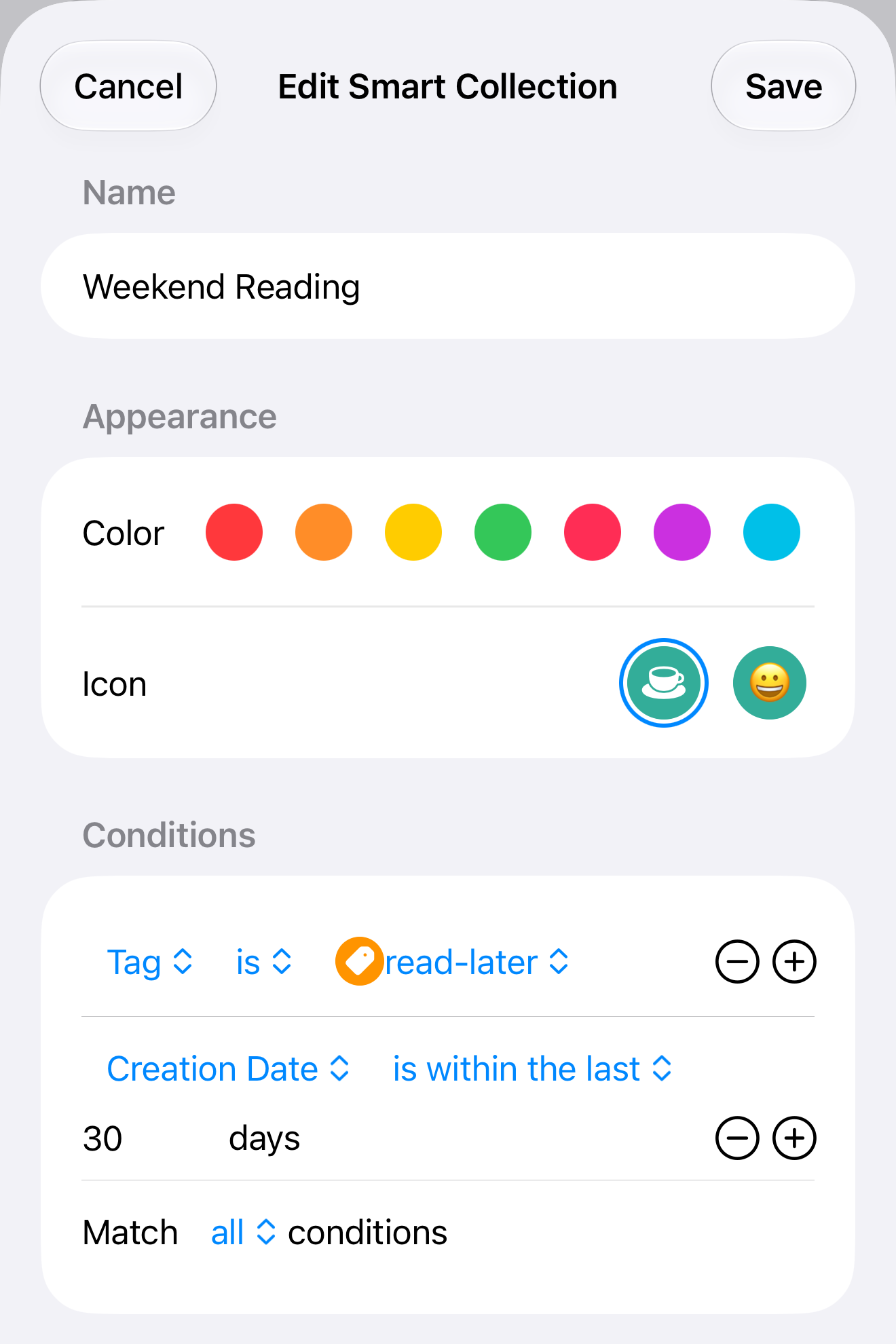
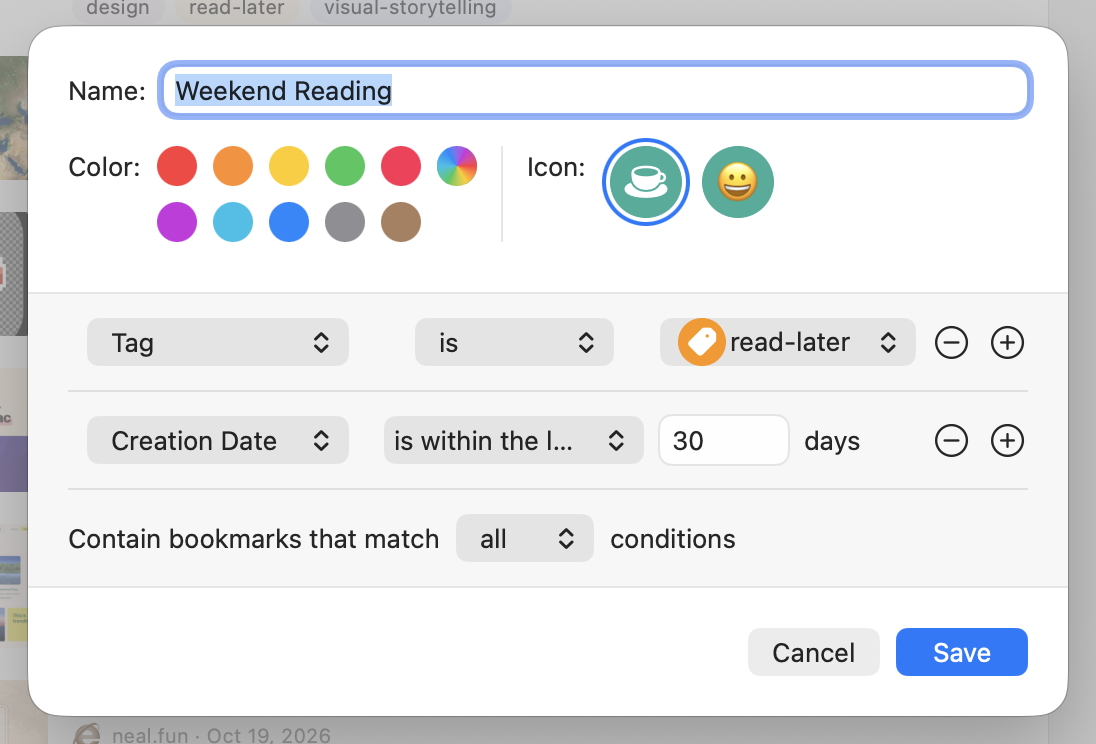
You can also filter by Domain, Note, Title, Collection or Link Status.
If Save is unavailable, check the name and each condition. For this list, choose a tag and enter a number of days greater than zero.
Match all or any?
- all includes only bookmarks with the read-later tag that you saved in the last 30 days.
- any includes every read-later bookmark, plus anything you saved in the last 30 days, even without the tag.
Choose all for Weekend Reading. If the list is empty, check a bookmark's tag and saved date.
Edit or delete
On iPhone or iPad, touch and hold the Smart Collection in the Bookmarks screen or sidebar. On Mac, right-click it in the sidebar.
- Choose Edit Smart Collection, make your changes, then Save. Choose Cancel to leave it unchanged.
- Choose Delete Smart Collection and confirm to remove the list and its conditions. Your bookmarks stay in the library.
To group links by hand, use regular collections and tags.