Run a check
The checker looks for broken links and missing preview images. It flags links it can't reach and tries to fetch previews for bookmarks without an image. It doesn't delete bookmarks.
On iPhone or iPad
- Tap the gear to open Settings.
- Under Link Checking, tap Check All Links and Images.
- Let the check finish, then return to your bookmarks.
On Mac
- Open the library window.
- Choose File → Check All Links and let the check finish.
Both commands check links and look for missing preview images, even though the Mac command says Check All Links. Run the check again to retry flagged links or missing previews.
Fill in missing preview images
When a bookmark has no saved preview image, the checker tries to fetch one from the page. It keeps images already saved, including ones you've chosen yourself.
Some pages don't provide a usable preview. A missing image alone doesn't put a bookmark in Dead Links. That list shows problems reaching the page.
If a preview stays blank, you can choose your own image.
Review the warnings
Open Dead Links under Smart Collections on the Bookmarks screen or sidebar.
- Missing has an X. The site returned HTTP 404 or 410, meaning the page wasn't found or is gone.
- Unreachable, shown with a warning triangle, means three connection attempts failed. The page may still exist. Try again later before deleting it.
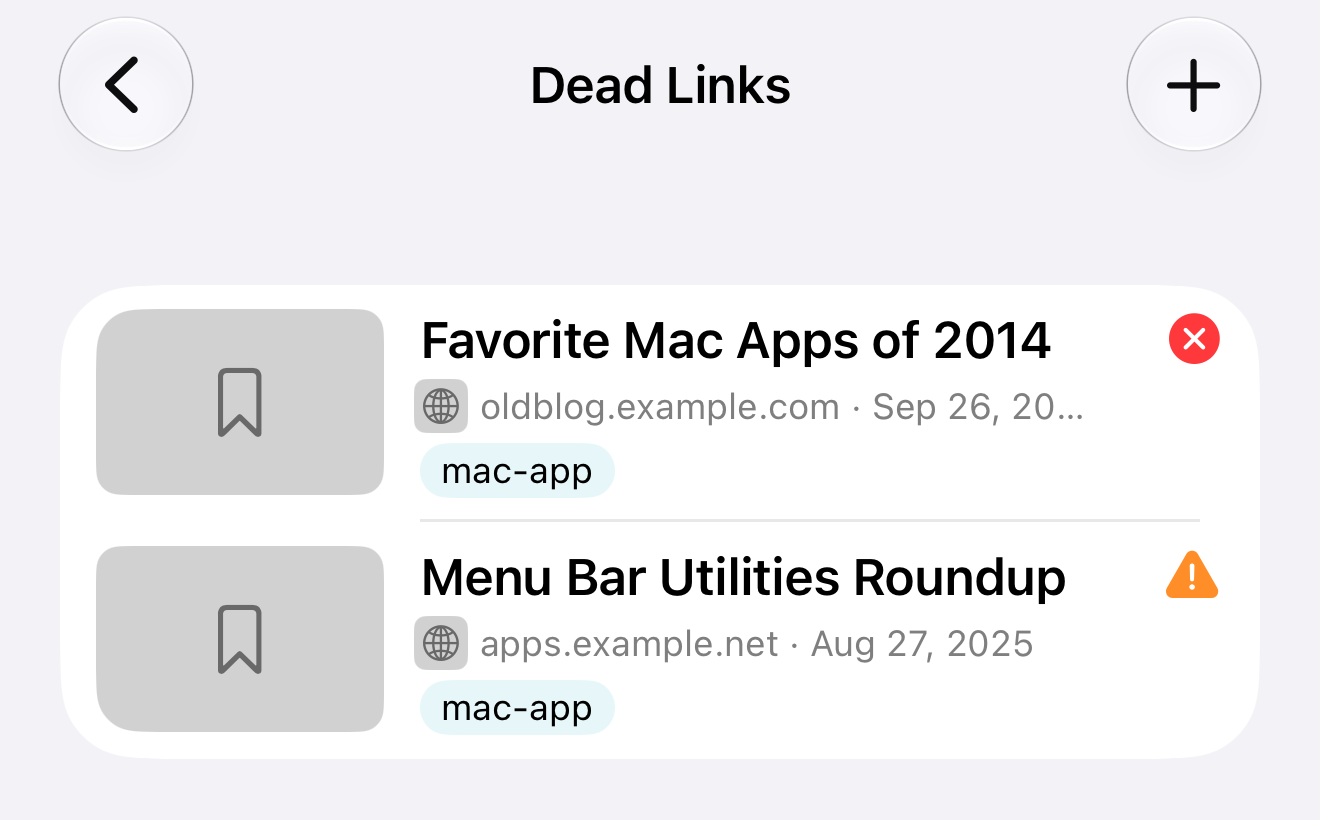
The bookmark's details show its status and Last Checked date. On iPhone or iPad, swipe left and tap Edit. You can also tap the bookmark if you've set taps to edit. On Mac, select it and look in the info panel. Click Show Info in the toolbar if the panel is hidden.
If Dead Links is missing, create a Smart Collection with one condition: Link Status, is, Dead. It lists both missing and unreachable links.
Look for an archived copy
The Internet Archive may have a saved copy of a missing page.
On iPhone or iPad
- Open the flagged bookmark's details.
- Scroll to its status and tap View Archived Copies.
On Mac
Right-click the flagged bookmark and choose View Archived Copies. The same button is in the info panel below its status.
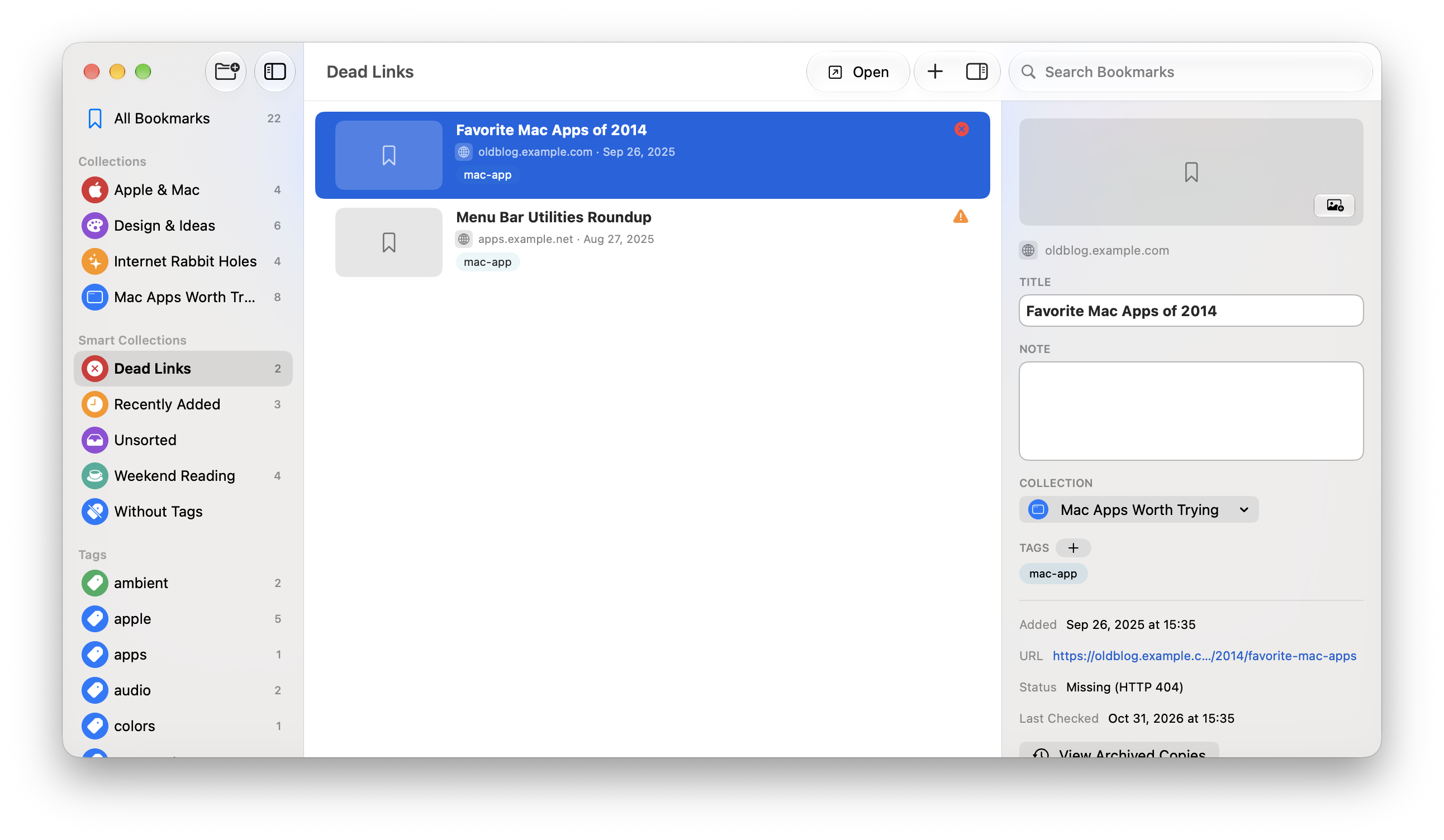
This opens the Internet Archive in your browser. A saved copy isn't guaranteed. Just Bookmarks doesn't create or store archived pages.
On iPhone or iPad, go to Settings → Dead Links and choose Open Original or Open Archive. This sets where flagged bookmarks open.
Turn automatic checks on or off
With Automatically Check on, Just Bookmarks checks up to 20 links once a day while the app is open. These checks also try to fill in missing preview images. They don't check your whole library at once.
- On iPhone or iPad, open Settings and find Link Checking.
- On Mac, choose Just Bookmarks → Settings, then General. Find Link Checking.
Turn Automatically Check on or off. You can still run a full check yourself.
Before deleting a bookmark
Try the original link again or look for an archived copy first. Unreachable doesn't mean the page is gone.
If you no longer need it, swipe left and tap Delete on iPhone or iPad. On Mac, right-click and choose Delete Bookmark. Confirm the deletion when asked.
This removes the bookmark from your library, not just the Dead Links list. To keep a backup, export your bookmarks first.