On iPhone or iPad
Open Just Bookmarks once to set up sharing before saving from another app.
- Open the page you want to save in Safari or another app.
- Tap Share. In Safari, you may need to open the page menu first.
- Choose Just Bookmarks from the row of apps.
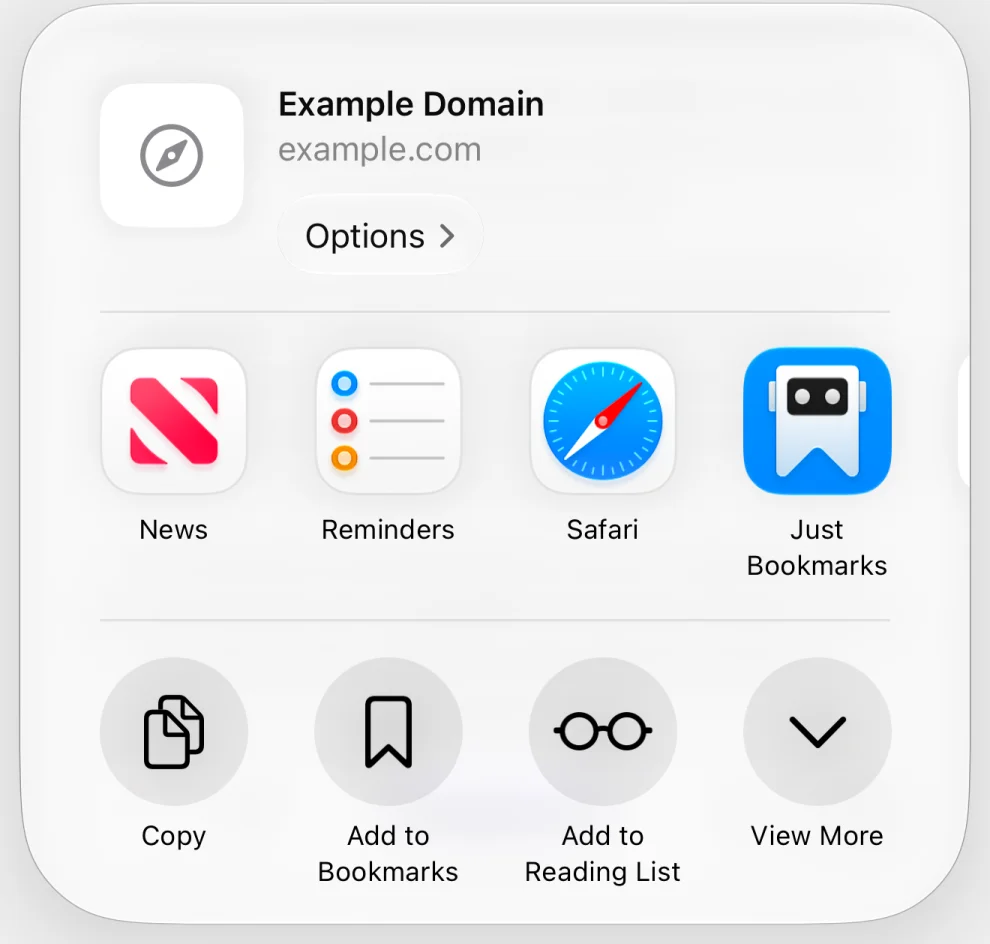
- Check the URL. You can add notes, choose a collection or add tags before saving.
- Tap Add.
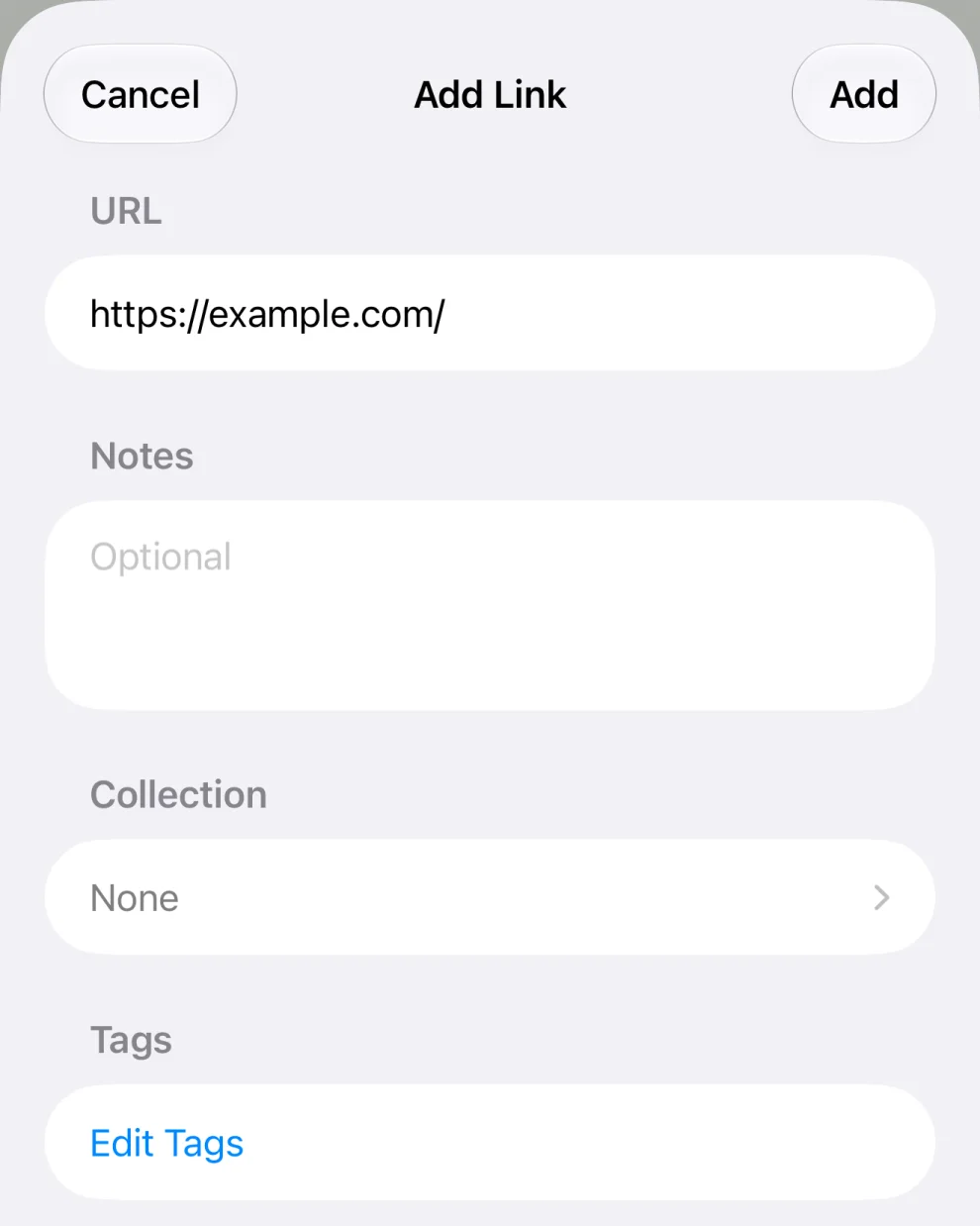
The link saves before its title and preview load. You don't need to wait.
From Safari on Mac
Open Just Bookmarks once, then enable its Safari extension.
- In Safari, choose Safari → Settings… → Extensions.
- Turn on Just Bookmarks.
- Open the page you want to save and click the Just Bookmarks button in Safari's toolbar. Its label is Save to Just Bookmarks.
- Check the URL and add any notes, collection or tags.
- Click Add.
If the button is missing, choose View → Customize Toolbar… in Safari and drag the Just Bookmarks button into the toolbar.
With a Mac keyboard shortcut
Set up a global shortcut to save from your browser. Keep Just Bookmarks running. Its window can stay in the background.
- Open Just Bookmarks → Settings… → Keyboard.
- Under Global, set Save Link Global Keyboard Shortcut by pressing Control, Shift and D, ⌃⇧D, or choose another combination.
- Switch to Safari or Google Chrome and open the page you want to save.
- Press your shortcut. If macOS asks, allow Just Bookmarks to control the browser. It needs this permission to read the current tab's URL.
- Check the URL in the new window, add any details and click Add.
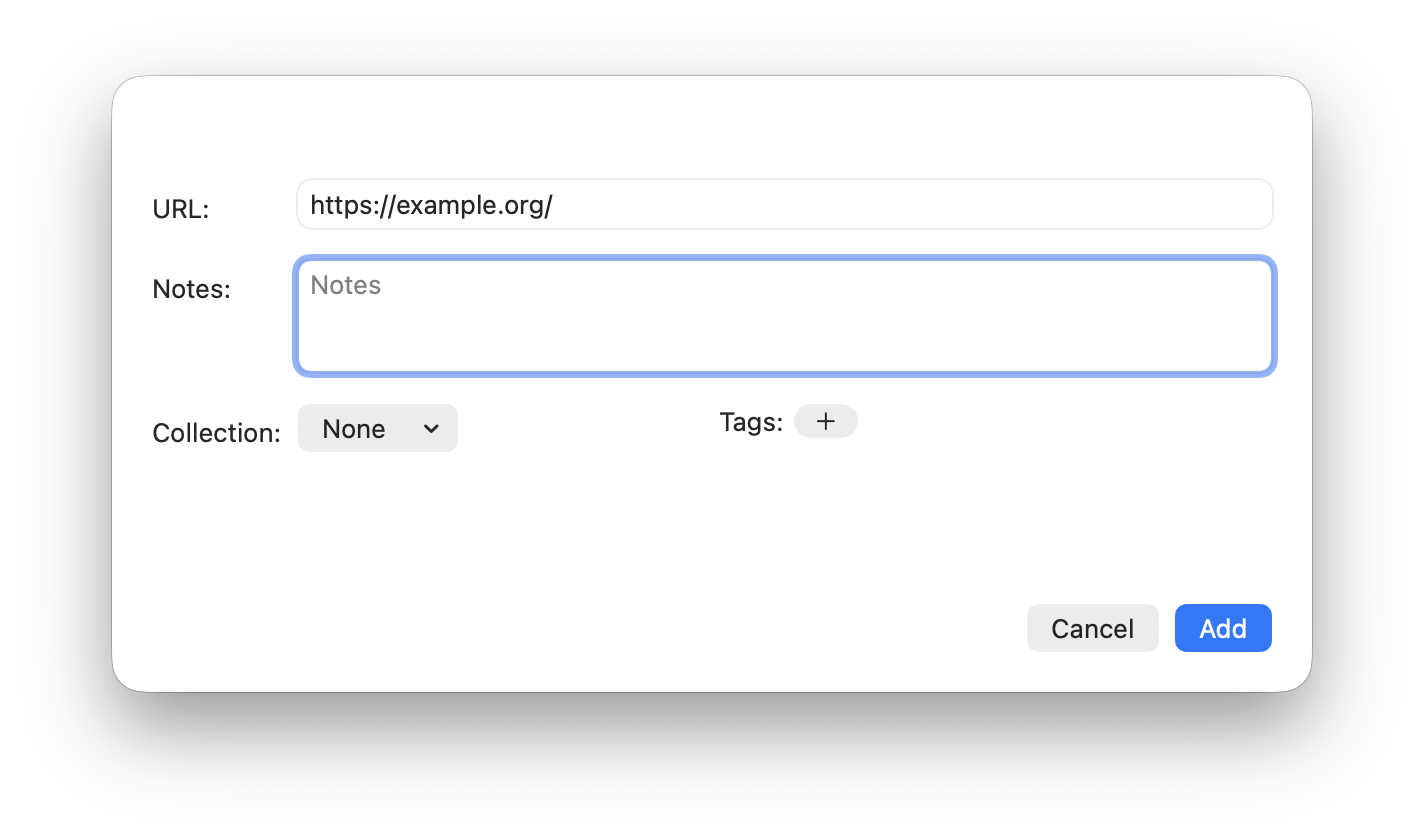
Using another browser? Copy and paste the link instead.
Paste a link
Copy a link from any app and paste it into Just Bookmarks.
On iPhone or iPad
- Copy the link, then open Just Bookmarks.
- Tap the Add Bookmark plus button in the toolbar.
- Paste the link into the URL field, then tap Add.
On Mac
- Copy the link, then choose File → New Bookmark in Just Bookmarks.
- Check the URL field. If your copied link isn't there, paste it.
- Click Add.
Moving a whole library? Import a bookmarks file rather than adding each link separately.
Choose a collection and tags
Before saving, choose a Collection or leave it as None to decide later.
On iPhone, iPad and in the Safari extension, choose Edit Tags to select tags, then Done to return. In the Mac app's Add window, use the plus beside Tags to choose an existing tag.
Notes are optional too.
To create a collection or organize saved links, see Organize bookmarks with collections and tags.
If something goes wrong
Just Bookmarks isn't in the Share sheet
Swipe to the end of the row of apps and tap More. Look for Just Bookmarks there. Tap Edit to turn it on or add it to your favourites.
If it still isn't listed, open Just Bookmarks once, then try sharing a web page from Safari. The app you're sharing from needs to provide a link.
I see "Sharing Isn't Ready"
Cancel, open Just Bookmarks and finish its initial setup. Return to your browser and share the link again.
The Mac shortcut doesn't work
Check that Just Bookmarks is running and the shortcut is set in Keyboard settings. Safari or Google Chrome must be the frontmost app for the shortcut to read its current page.
If browser access was denied, open System Settings → Privacy & Security → Automation and allow Just Bookmarks to control that browser. You can paste the URL instead if you prefer not to grant access.
The link is already saved
The Add button becomes Save. Saving updates the existing bookmark instead of adding a second copy.
Still stuck? Email support. Include your device, the app you're saving from and the error message.