Before you start
Open Just Bookmarks and finish setup on the device you'll use. Then open Apple's Shortcuts app.
Looking for the Mac app's keyboard shortcut for saving links? That's separate from Apple's Shortcuts app.
Save a copied link
On iPhone or iPad
Tap the plus in Shortcuts. Tap the shortcut's name, choose Rename and enter Save copied link. Tap Add Action.
On Mac
Click the New Shortcut plus button. If you see a prompt to describe a shortcut, click Edit in the toolbar to open the action editor. Name it Save copied link.
Add the actions
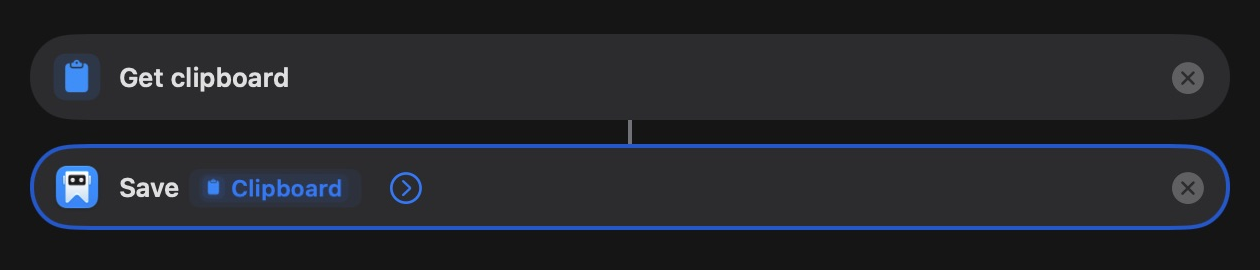
- Search for Get Clipboard and add it.
- Search for Save Bookmark and add the Just Bookmarks action below it.
- Set URL to the output of Get Clipboard. If it already shows the Clipboard variable, leave it there.
On iPhone or iPad, tap the URL field and choose Select Variable. On Mac, Control-click it and choose Select Variable. Then select the Clipboard output beneath Get Clipboard. Don't type the word Clipboard into the URL field.
Try it
- Copy a full web address, such as
https://example.com. - Return to Shortcuts and press the triangular Run button.
- If asked for clipboard access, allow it for this run.
- Open Just Bookmarks and check All Bookmarks for the link.
Tap Done on iPhone or iPad, or close the editor on Mac. Copy another URL whenever you want to run the shortcut again.
Save Bookmark doesn't fetch a page title or preview image. Add a title in the action or edit the bookmark later.
Choose a collection and tags
Click or tap the arrow beside the URL in Save Bookmark to show its optional fields.
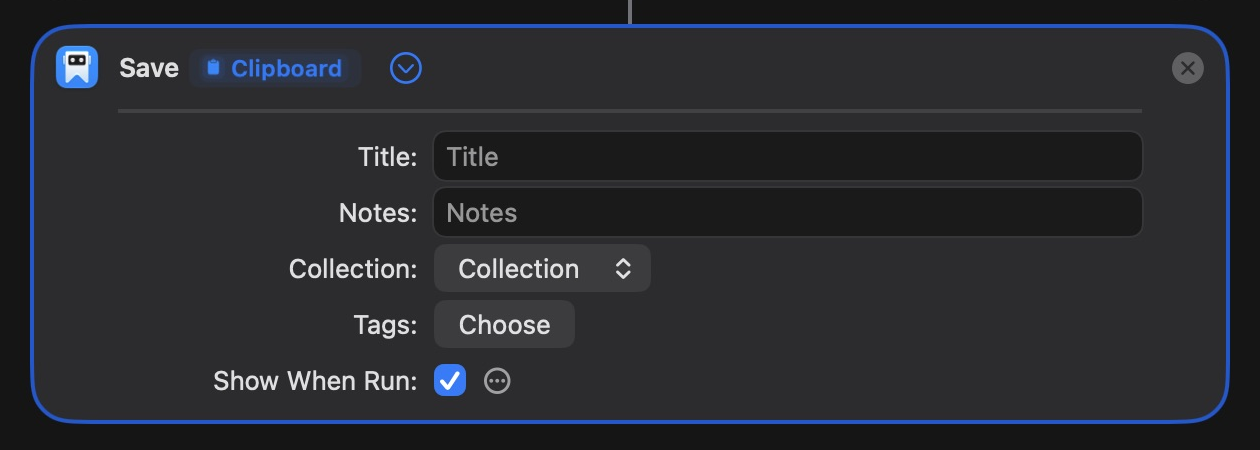
- Choose an existing Collection for new links.
- Choose existing Tags, such as read-later.
- Add a Title or Notes if you want the same text on each new bookmark.
You can leave these blank. To create a collection or tag first, follow the collections and tags guide.
Choose read-later under Tags to include new links in the Weekend Reading example.
Open Weekend Reading
Create Weekend Reading in Just Bookmarks first. The shortcut opens that Smart Collection.
- Create another shortcut with the plus button and name it Open Weekend Reading.
- Add the Just Bookmarks action Open Smart Collection.
- Tap or click the Smart Collection field and choose Weekend Reading.
- Tap or click Run. Just Bookmarks should open to that list.
To open a regular collection instead, use Open Collection.
If something goes wrong
The Just Bookmarks actions aren't listed
Open Just Bookmarks and finish setup, then reopen Shortcuts. Check the app icon beside the action to make sure it's from Just Bookmarks.
The URL is empty or invalid
Copy the web address, not the page title. Check that Get Clipboard is first and that Save Bookmark uses its output in the URL field.
The bookmark is already saved
Save Bookmark keeps the existing bookmark. It won't create a duplicate or change its title, notes, collection or tags.
A collection or tag is missing
Check that it exists in Just Bookmarks on this device. If you deleted it and made another with the same name, select the new one in the shortcut.
For more on the editor, see Apple's Shortcuts guides for iPhone and iPad or Mac.